
SMS Notifications Addon – Setup Guide
The SMS Notifications Addon allows BookingHub to send automated SMS alerts (new booking, cancellation, reminders, follow-ups, etc.) to customers and staff.
After installing the addon, follow the steps below to connect your Twilio account and enable SMS sending.
Install & Activate the Addon
Install and activate the SMS Notifications Addon from your WordPress dashboard or BookingHub Addons page.
Once activated, continue with the setup steps below.
Configure Twilio SMS Settings
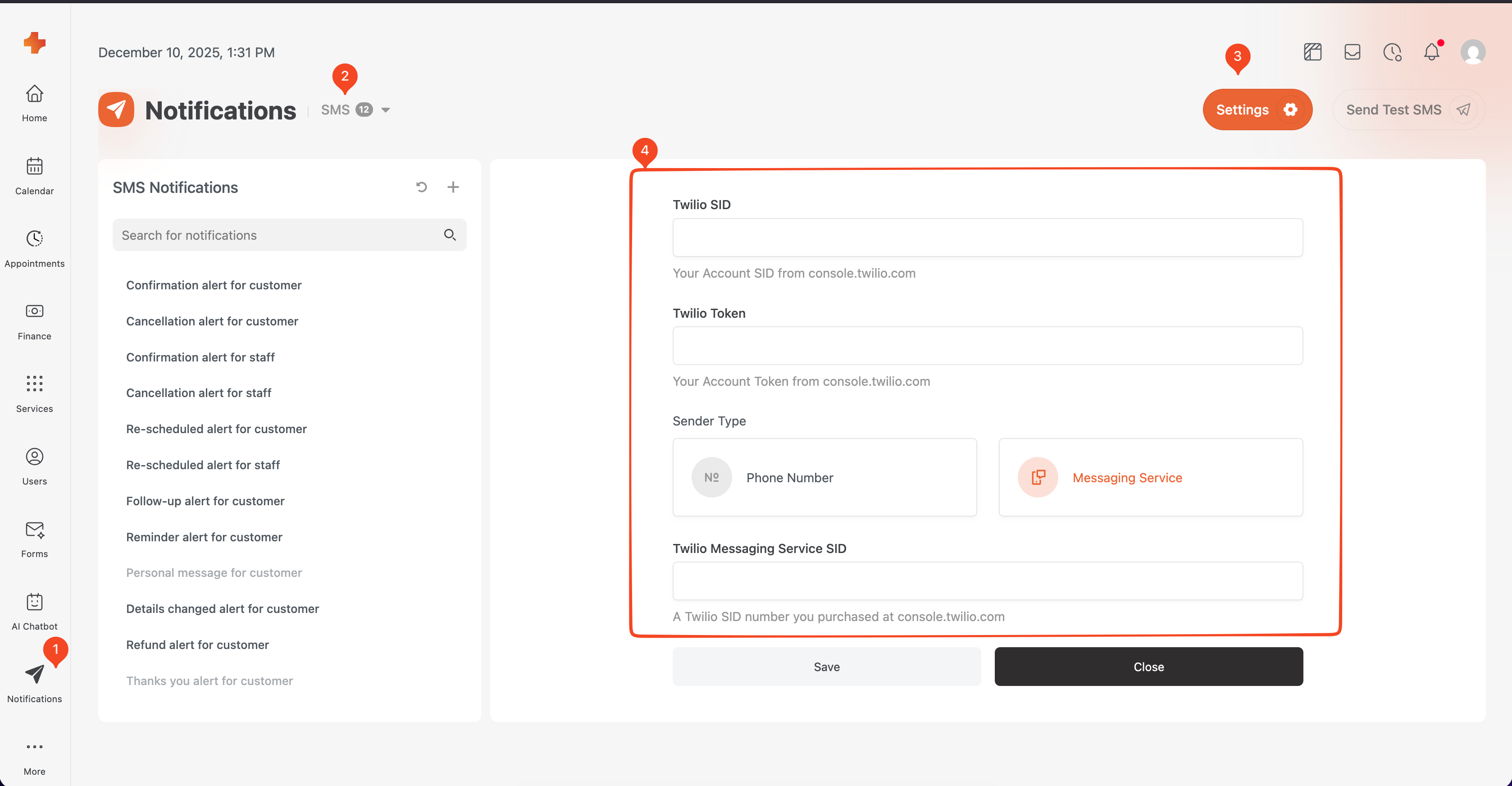
1. Navigate to Notifications
From the BookingHub admin sidebar, click Notifications.
2. Select SMS
Inside the Notifications section, choose the SMS tab to view all SMS templates and settings.
3. Select Settings
Click the Settings button at the top right.
This opens the Twilio configuration panel (shown in the screenshot).
4. Fill the fields and save
Enter your Twilio credentials:
Twilio SID
Your Account SID from Twilio.Twilio Token
Your Twilio Auth Token.Sender Type
Choose one of the following:
• Phone Number – Use a Twilio phone number you purchased.
• Messaging Service – Use a Twilio Messaging Service SID.Twilio Messaging Service SID
Required if you select Messaging Service.
After filling in the required fields, click Save.
To get your Twilio keys, follow their official guide:
https://help.twilio.com/articles/14726256820123-What-is-a-Twilio-Account-SID-and-where-can-I-find-it-
Once your Twilio credentials are saved, BookingHub will begin sending SMS notifications automatically based on the SMS templates you configure.