
The Sync Calendars Addon lets you import events from external calendars (Google, Outlook, Apple, etc.) into BookingHub using iCal/ICS feed URLs. Imported events block availability for the selected BookingHub service to prevent double-bookings.
1. Accessing the Addon
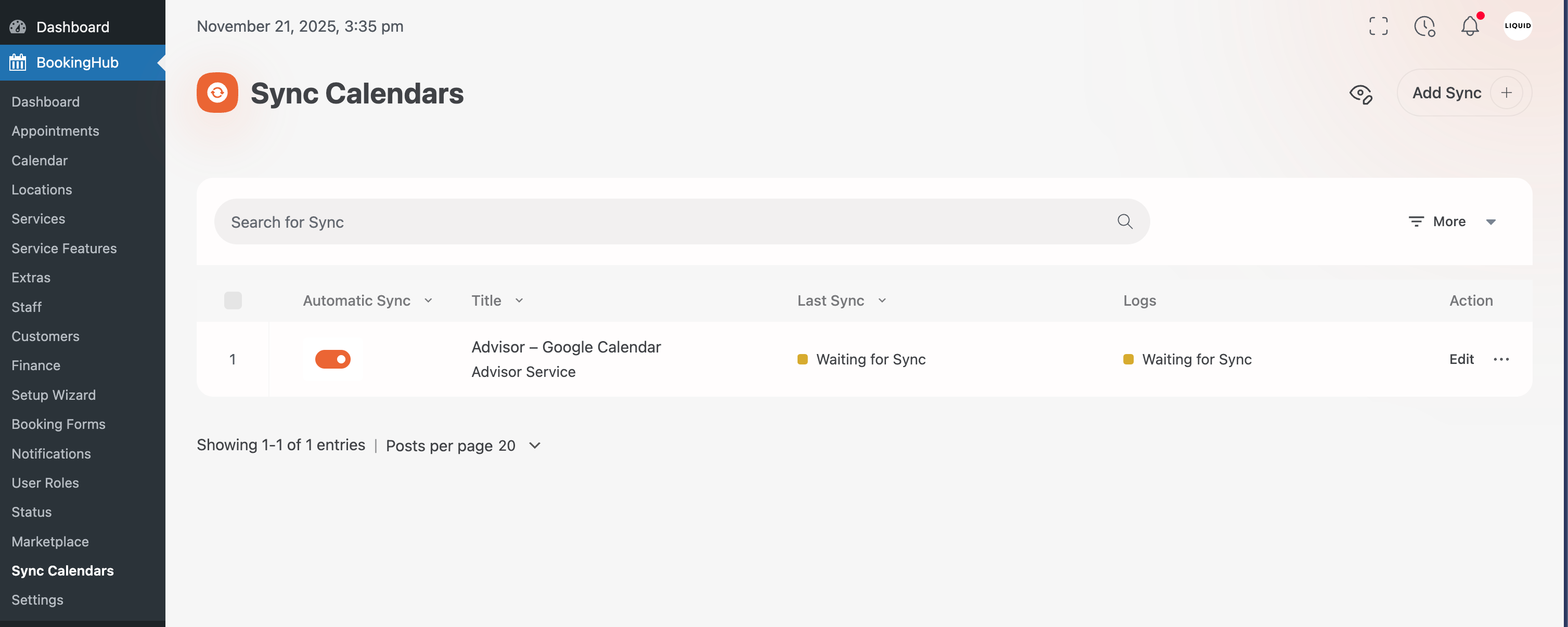
Go to BookingHub → Sync Calendars.
Click Add Sync to create a new sync profile.
2. Creating a Sync
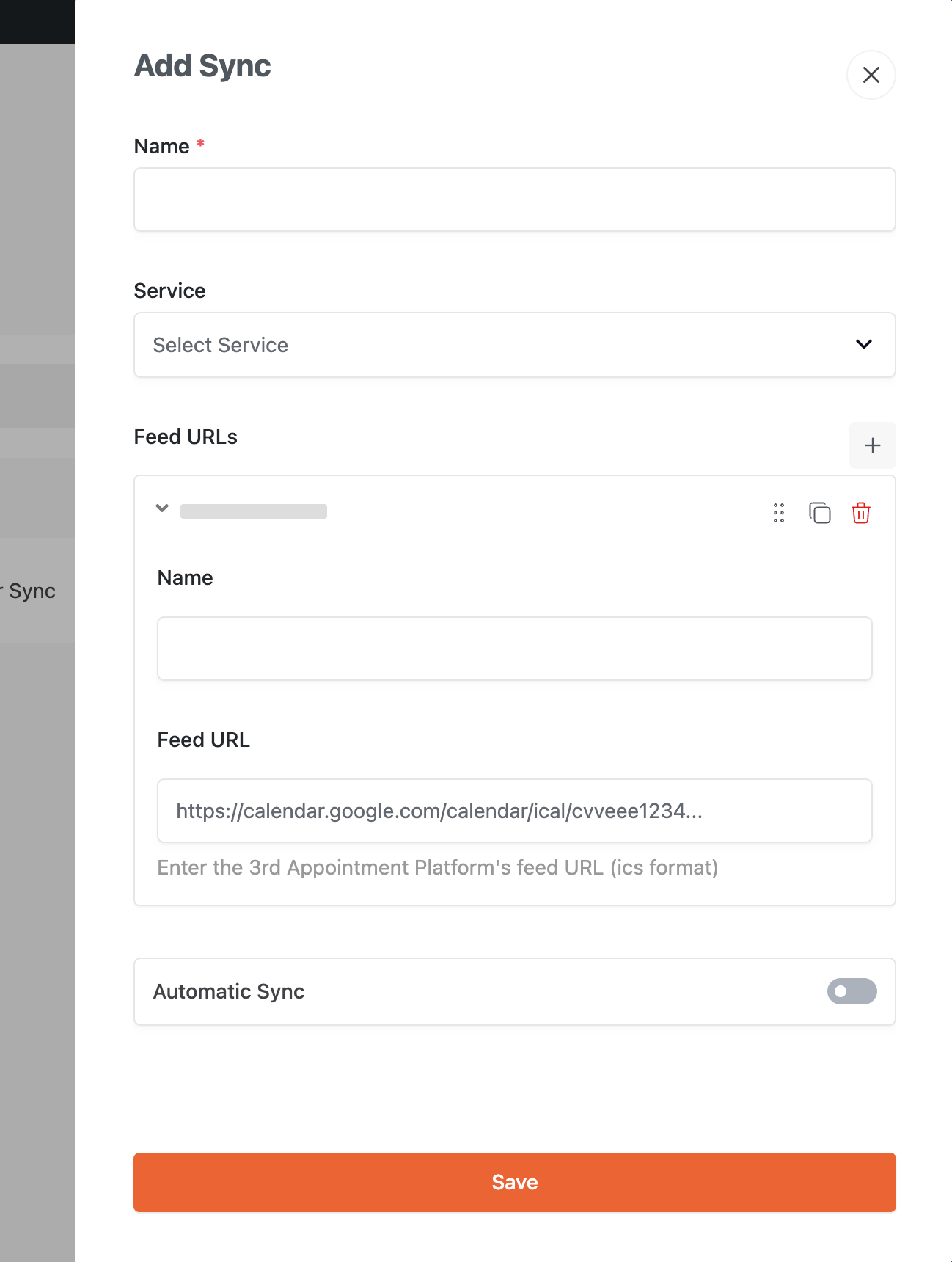
Name
Enter a label for your sync (e.g., “Advisor Calendar”, “Therapist iCloud Feed”).
Service
Select the BookingHub service this sync applies to (e.g., Consultation, Haircut, Advisor Service).
Feed URLs
Add one or more ICS feed URLs from external calendars.
Each feed includes:
Feed Name (for identification)
Feed URL (the iCal/ICS link)
You can reorder, duplicate, or delete feeds. Use the + button to add multiple feeds.
Automatic Sync
Enable this if you want BookingHub to fetch the feed automatically (via cron).
Click Save when done.
3. Sync List & Actions
After saving, the sync appears in the list with:
Automatic Sync status
Selected Service
Last Sync
Logs
Actions (⋯ menu)
Sync Now — immediately fetches events from all feed URLs.
Trash — deletes the sync profile.
Use Edit to modify existing syncs.
4. Status Indicators
Common messages:
Waiting for Sync — no sync has run yet or pending cron
Success — events imported
Error — check the ICS URL or calendar sharing settings